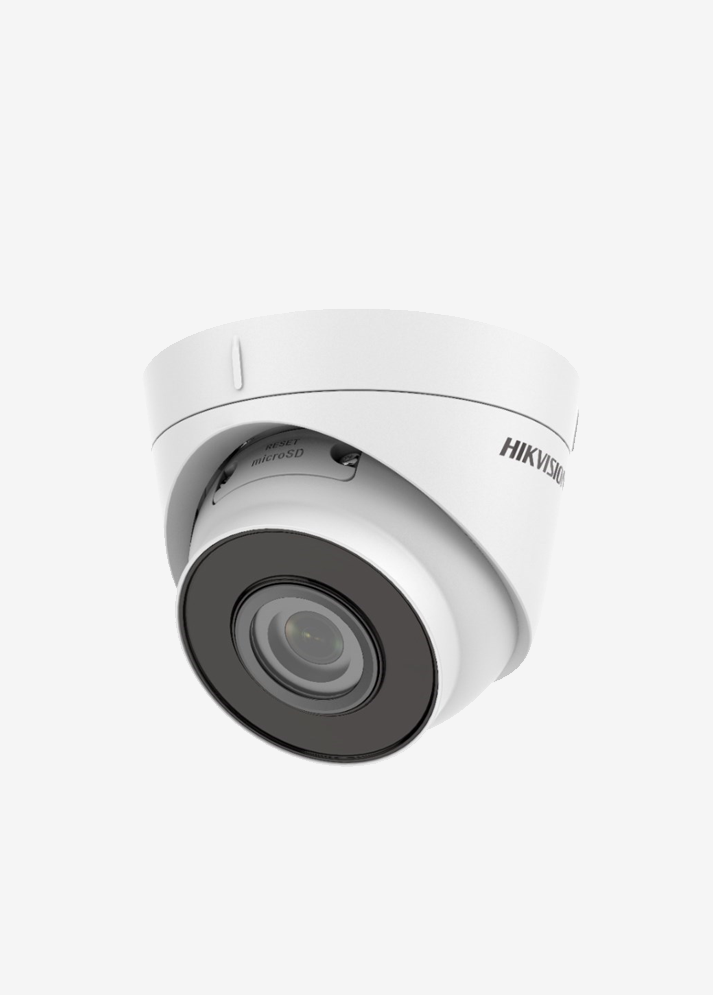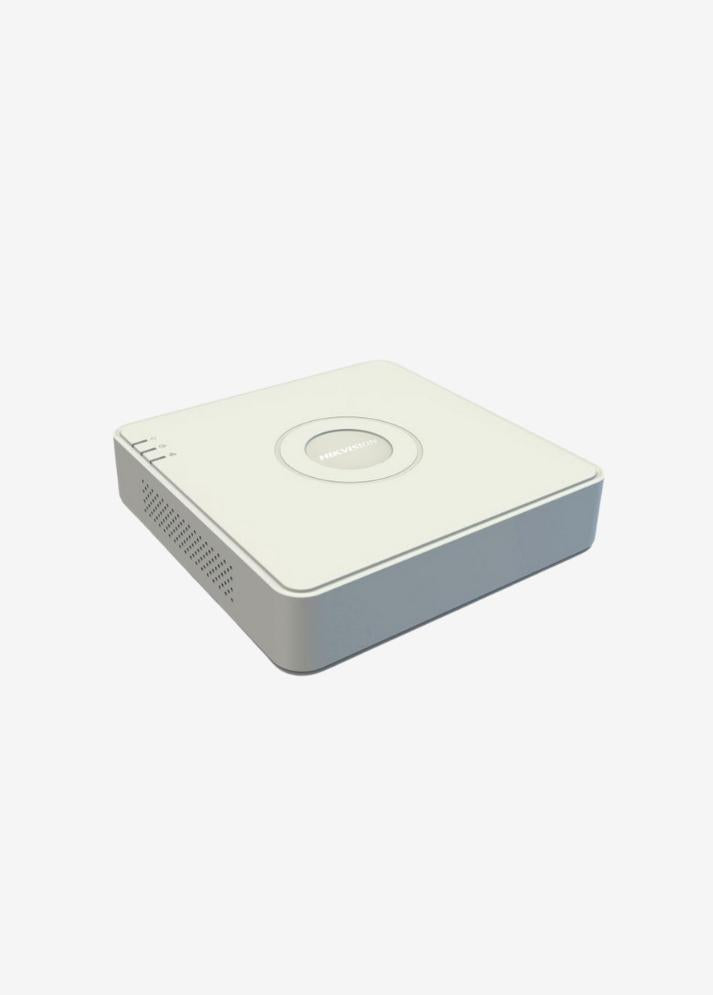

Open the app on your phone that corresponds to your security camera's brand or system. This app should usually be installed when you first set up your camera. If not, you can download it from the camera manufacturer's website or your app store (App Store, Google Play, etc. ). Some examples include XMEye, Hik-Connect, and more.
If you do not know the brand of your installed cameras, you will find one of the following brands on the bottom or top of the camera.
Most systems have their own applications, such as:
-
Hikvision : Hik-Connect
-
Dahua : gDMSS (Android) / iDMSS (iOS)
-
Reolink : Reolink
-
The app can usually be downloaded from the Google Play Store or the Apple App Store.
Create an Account and Log In :
- Connecting your camera system to your mobile device typically requires a username and password. You can find this information in your camera's web interface or on the device itself.
- Open the application, enter your user information and log in to the system.
Add Camera :
- Within the app, there's an option to "Add Device" or something similar. You may need to enter your camera's IP address or serial number here.
- After adding the camera, you can start seeing all your cameras connected to the system through the app.
Watching the Record :
- The app usually has options to watch live and access recordings.
- Watching Recordings : Recordings are usually found in the "Playback" or "Recordings" tab. From there, you can access the recording you want to watch by selecting the date and time.
- Live View : Click on the live view tab on the main screen of the app to view the cameras in real time.
Connection Status :
- If your phone and camera system aren't on the same network (for example, if you're connecting via mobile data), the connection may be slower. Some systems may require additional settings (like port forwarding or P2P) to access your cameras remotely.
The steps above are a general guide. The app interface and functionality may vary depending on the camera brand and model you use. Therefore, reviewing your camera system's user manual or consulting the manufacturer's support resources will provide the most accurate information.
If you're getting a warning in the app like " No video found ," it could mean your camera system isn't recording. In this case, you might need to check your system settings.