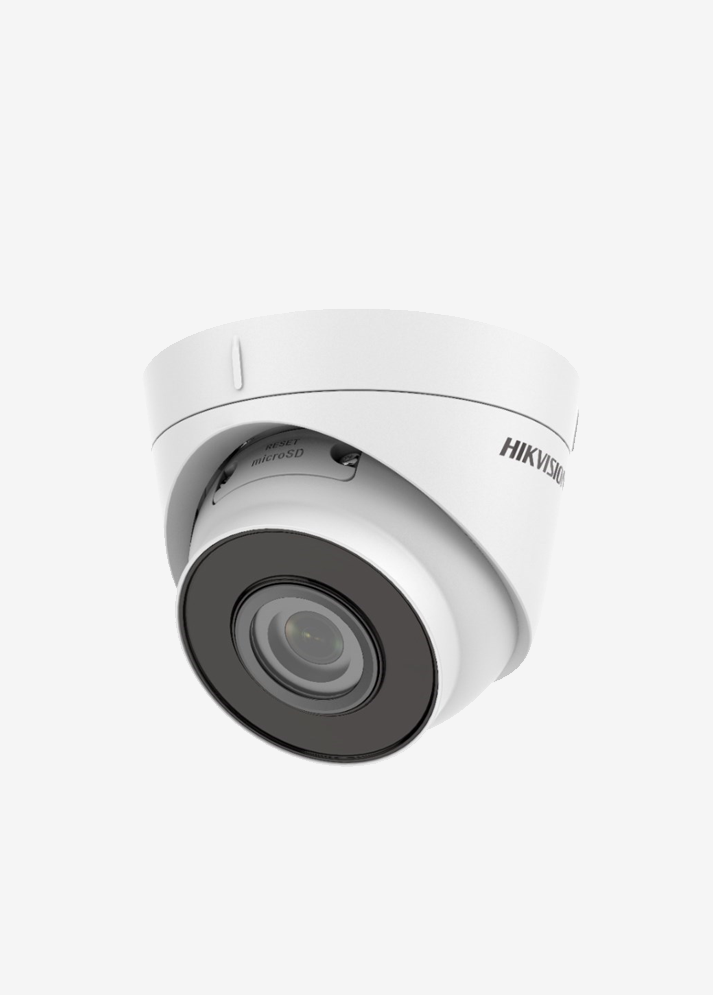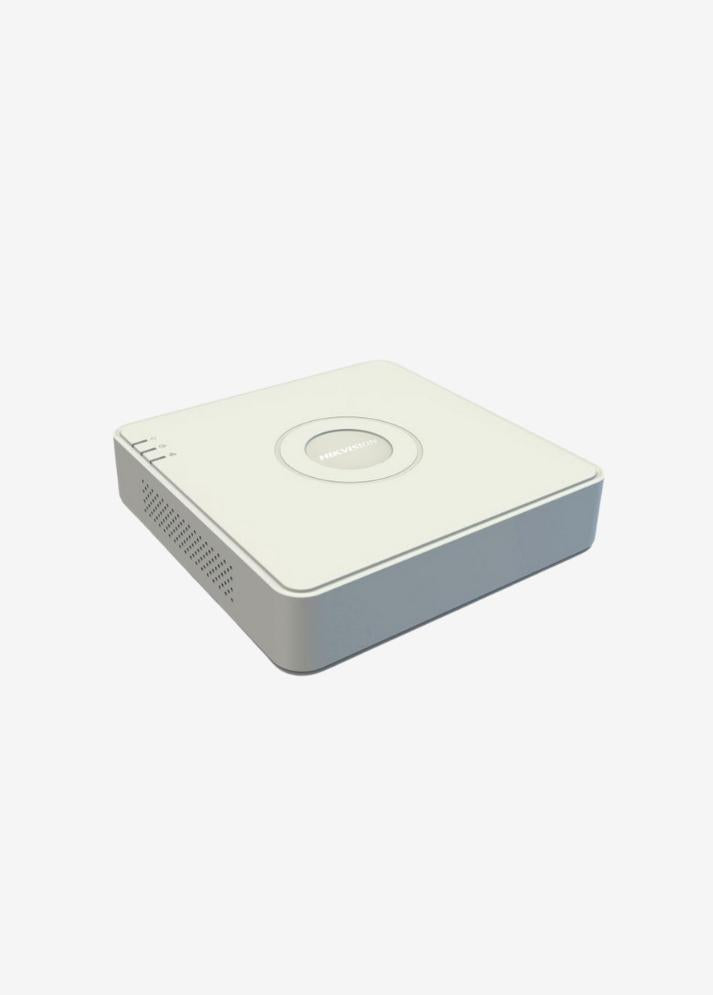

There are several methods for resetting passwords on Hikvision recorders (NVR/DVR) and IP cameras. However, since password resets are critical to the device's security, it's recommended that you follow the steps carefully and, if possible, seek support from an authorized technical service provider.
📞 Fast Technical Support from WhatsApp
You can contact the CCTV Burada Technical Support Team immediately to quickly resolve your Hikvision DVR/NVR issue.
🚀 Connect to Our WhatsApp LineHere are the commonly used methods:
1. Reset Password with SADP (Search Active Devices Protocol) Tool:
This method is done through a tool developed by Hikvision itself and is generally the most widely used method.
-
Download and Install SADP Tool: Download and install SADP tool on your computer from the support section of Hikvision's official website (usually found under " HiTools " or " Software ").
-
Make Sure Your Device is on the Network: Make sure both your computer and your Hikvision recorder or IP camera are connected to the same local network.
-
Run SADP Tool: Once you open the program, all Hikvision devices on the network will be listed.
-
Select the Device You Want to Reset the Password for: Find the device whose password you forgot from the list and select it.
-
Click "Forgot Password": You'll see this option in the bottom right or right-hand side of the program. Clicking it may offer you different reset methods.
- Resetting with an Export File: This method requires you to create an XML file by clicking the " Export " button and email it to Hikvision technical support (or the distributor from which you purchased the device). They will then send you an " Import " file or code for resetting. You can import this file or code into the relevant section of the SADP tool and set a new password. This process typically takes 1-3 business days .
- Resetting with Security Question (On New Generation Devices): If you have defined security questions during setup on your device, you can create a new password by answering these questions after clicking the " Forgot Password " option.
- Resetting with Reserved Email (If Connected with Hik-Connect): If your device is connected to your Hik-Connect account, you can select the "Reserved Email" option on the "Forgot Password" page. A verification code will be sent to the email address registered with your Hik-Connect account. You can enter this code to create a new password.
- Resetting with a QR Code (Hik-Connect or Hik-Partner Pro): Select the QR code option on the "Forgot Password" page and scan the QR code with your Hik-Connect or Hik-Partner Pro app. You'll be guided through the steps to create a new password after verifying it through the app. (This feature is typically for installers.)
-
Create a New Password: Once the reset is successful, you can set a new password to access your device. Be sure to choose a strong password.
2. Resetting with the Reset Button on the Device (In Some Models):
Some Hikvision IP cameras may have a physical reset button. You can reset the device to factory settings by pressing and holding this button. However, be careful as this will erase all settings.
- Disconnect the power of the device.
- Locate the Reset Button: It's usually located inside a small hole and may require a pin or similar tool to press it.
- While holding down the reset button, reconnect the power to the device.
- Continue to hold the reset button for approximately 10-15 seconds.
- Release the button and wait for the device to reboot.
- Access with Default IP Address: When the device is restored to factory settings, you can define a new password by accessing the default IP address (usually 192.168.1.64 or 192.0.0.64, depending on the model) via a web browser or the SADP tool.
3. Contacting Hikvision Technical Support:
If the methods above don't work or you're unsure, you can contact Hikvision's official technical support channels. They can provide you with different methods or instructions specific to your model.
Important Notes:
- Password resets can affect device security, so make sure you understand the steps correctly.
- Wrong steps may render your device unusable.
- If possible, keep your passwords in a safe place.
- Don't forget to set a strong password when you first set up your devices.
- Password reset methods may differ for older or vulnerable products.
This information is provided as a general guide. It's best to refer to Hikvision's user manual for instructions specific to your device model.