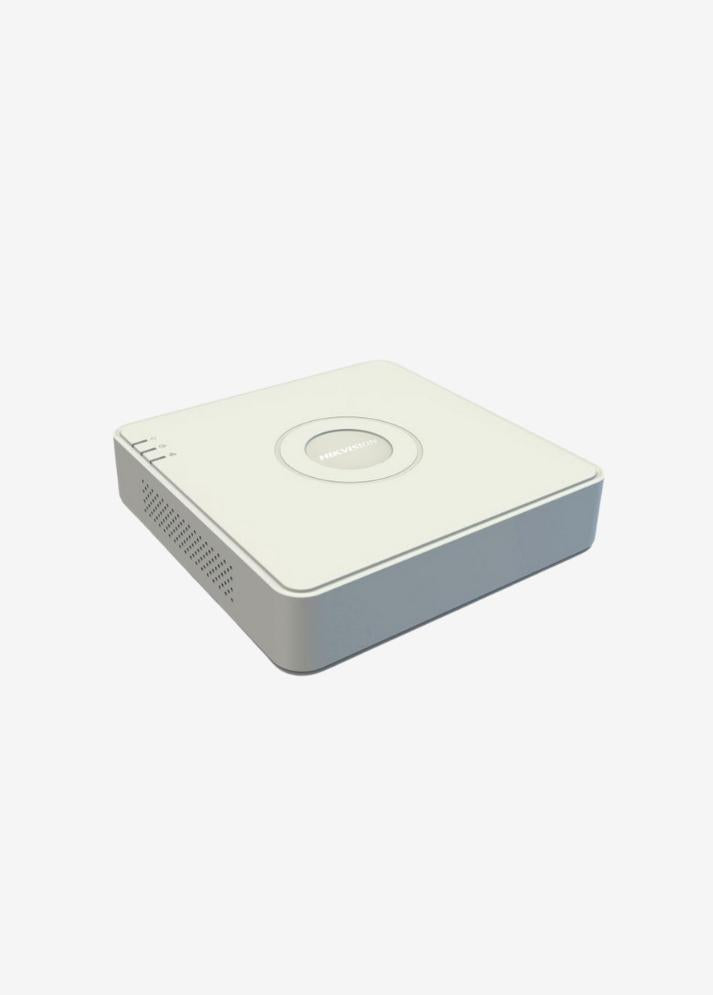

Dunlop DVRs are among the most commonly used recording solutions in security camera systems. However, one of the most common problems users experience is forgetting the device's password. This loss makes it impossible to access menus, watch recordings, or manage the device. In this article, we'll explain step-by-step how to reset your Dunlop DVR password and provide technical support solutions if needed.
📞 Fast Technical Support from WhatsApp
You can contact the CCTV Burada Technical Support Team immediately to quickly resolve your DVR/NVR issue.
🚀 Connect to Our WhatsApp LineWhy Reset Dunlop DVR Password?
-
Forgetting the administrator (admin) password
-
Factory reset password changed or lost
-
Not knowing the old password on second-hand devices
-
The need to reset the device before it is handed over for security reasons
Dunlop DVR Password Reset Methods
1. Try with Default Password
Dunlop DVRs may have factory default login information:
-
Username: admin | Password: 123456
-
Username: admin | Password: 888888
-
Username: admin | Password: 000000
-
Username: admin | Password: (can be left blank)
👉 If the device password has not been changed before, these combinations may work.
2. Resetting with Date (Master Password)
Dunlop DVR devices can operate with the logic of generating a daily master password based on the system date shown on the login screen.
-
Make a note of the date information on the login screen.
-
Generate a temporary password using this date using the master password generator or send it to the seller/technical service.
-
Access the menu by entering the generated master password.
-
Create a new password.
3. Resetting via Mobile Application
Dunlop DVR devices typically work with XMeye-based mobile software .
-
Download the XMeye app on your phone.
-
Add your DVR device to the app.
-
Select the Forgot Password option.
-
Create a reset request with the device serial number.
-
Set a new password via email or verification code.
4. Hardware Reset (via Motherboard)
Some Dunlop DVR devices may have a reset button or jumper pins on the motherboard.
-
Turn off the DVR and open its cover.
-
Press the reset button for a few seconds or short the jumper pins.
-
The device will be reset to factory settings and you can log in with the default password.
⚠️ This operation should only be performed by technically knowledgeable persons. Incorrect application may cause the device to malfunction or void the warranty.
5. Resetting with Technical Service
If none of the methods work, you can contact Dunlop technical service with the serial number and model information of the device.
-
The technical service can provide you with a special reset file or temporary master password .
-
Authorized dealers can also provide support for password resets.
Things to Consider After Resetting Your Password
-
Choose a strong password (combination of letters + numbers + special characters).
-
Be sure to keep your new password in a safe place.
-
Add email verification from the device menu (if applicable).
-
Make sure that only authorized persons know the password.
Frequently Asked Questions (FAQ)
1. Will recordings be deleted during Dunlop DVR password reset?
No, only the login password will be reset. Saved images will not be deleted.
2. Is the master password the same on every device?
No. It is produced specifically for each device based on date and serial number.
3. Should the device be reinstalled after resetting?
If you perform a factory reset, you will need to reconfigure the camera and network settings.