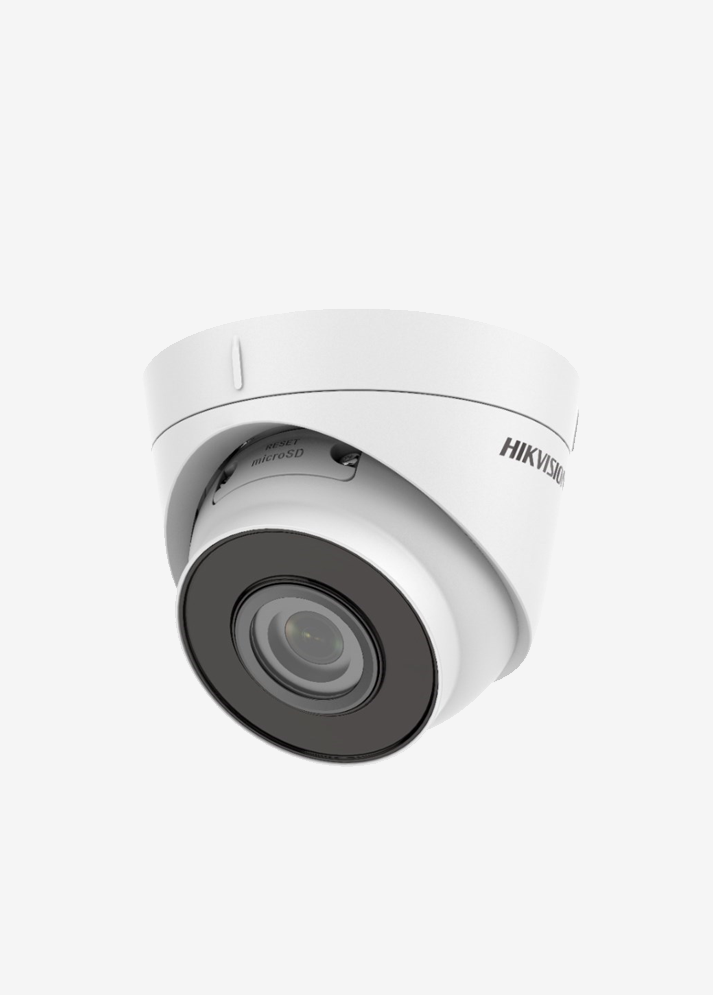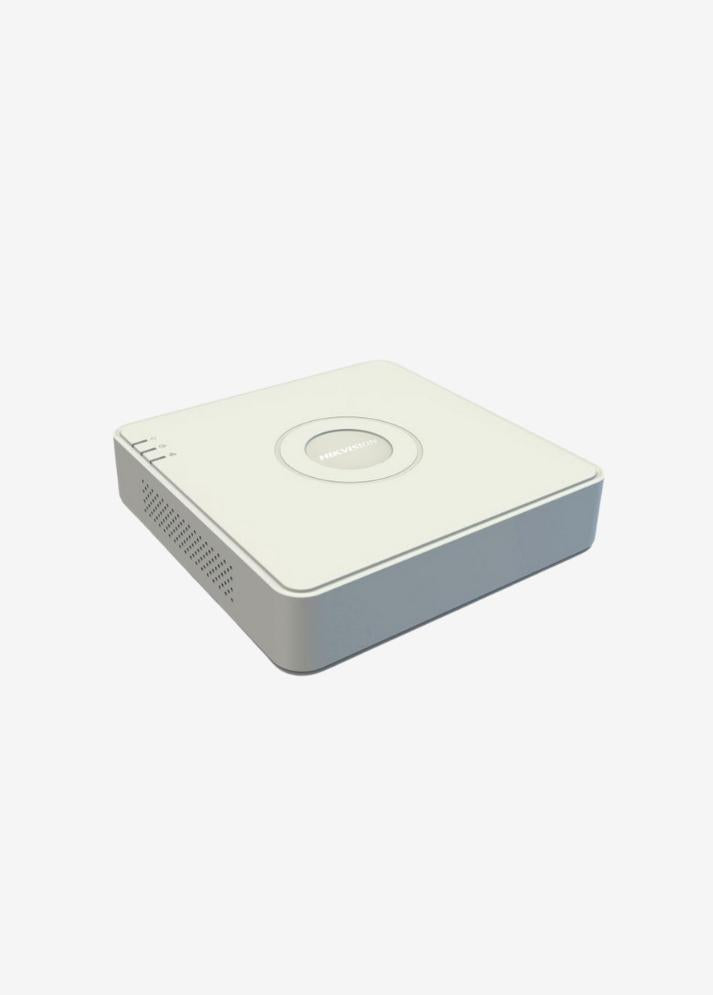
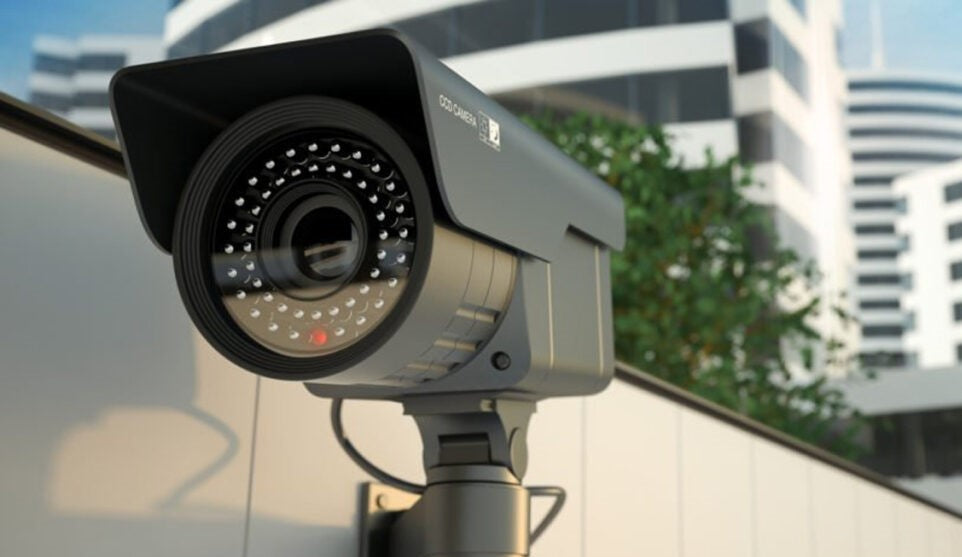
While security cameras make life easier, they also raise privacy concerns. So how do you know if someone is watching your live stream or accessing your recordings? This guide offers clear, actionable steps for professional CCTV systems with home Wi-Fi cameras and NVRs .
1) First, clarify your system type
-
Home Wi-Fi/Cloud camera: Standalone, typically accessed via mobile app (Hik-Connect, Imou Life, Ezviz, Tuya/SmartLife, etc.).
-
CCTV (IP/Analog) + NVR/DVR: There is a recording device; monitoring is usually done via NVR interface, computer software (IVMS/SmartPSS/Guarding Vision, etc.) or mobile app.
This distinction determines where you look : camera interface, NVR, or router/switch?
| Symptom | What Does It Tell? | What To Do? |
|---|---|---|
| PTZ camera moves by itself | Someone may be controlling the PTZ while watching live | Check NVR/camera user and log screen |
| IR LEDs are triggered frequently at night | Not live viewing, may be motion/dim light | Check the “Day/Night” and Smart IR settings |
| NVR/Camera “Online Users / Connected Clients” are increasing | There are multiple live viewers at the same time | Check session list and IP addresses |
| “New login” alerts in the mobile app | Another device logged into your account | Remove unrecognized devices from the list of active devices |
| External connections on the router / ports opened with UPnP | There is direct access via the Internet | Turn off UPnP , remove manual port forwarding if available |
| Instant high upstream traffic at insignificant hours | It can be live broadcast or image transfer | Examine the PoE switch/Router traffic graph |
3) Technical methods for finalization
A) From the camera/NVR interface
-
Online Users / Connected Clients / Active sessions:
The built-in interface typically includes a menu similar to "System > Information > User/Sessions." This displays the number of connected devices , IP addresses , access protocols (RTSP/HTTP/ONVIF) , and timestamps . An unfamiliar IP address/device may have live streaming or recording access. -
System Logs:
Event records such as “Remote login success/fail”, “Play live view”, “File playback” show who accessed, when and where . -
Stream counter/channel status:
Some devices show the number of simultaneous live views or bitrate information for each channel.
B) From the mobile application
-
Active sessions / connected devices:
Active devices are listed in sections like "Security > Input Devices" in the app profile. Terminate unknowns, change your password , and enable 2FA if possible. -
Notification history:
Take warnings like “A new device has logged into your account” seriously.
C) From your network equipment (home/office)
-
Router/NAT connection table:
If there are external TCP sessions established to the NVR/Camera IP, monitoring is done over the internet. -
UPnP / Port forwarding:
Automatically opened typical ports such as 37777/554/8000/80 , etc., making the device accessible from the Internet. Disable UPnP. -
PoE Switch port statistics:
The normally low uplink/port throughput suddenly spikes during monitoring. This could be a sign of live broadcasting/remote monitoring.
D) Simple “quarantine” test
-
Change passwords , close all default “guest/registered” accounts .
-
Disable UPnP and all port forwarding .
-
Temporarily turn off P2P (cloud access) feature.
-
Watch only from local network with a separate device.
-
Are active sessions and traffic increasing again? If not, external access is blocked; the previous status indicates remote monitoring.
4) Fast streaming for home users
-
From the mobile app, review active devices → remove those you don't recognize.
-
Make camera/NVR password strong → enable 2FA .
-
Turn off UPnP on the modem → Delete port forwarding if there is one.
-
Check the Online Users and Log screens on the camera/NVR.
-
Update firmware and disable default users .
-
If in doubt, only set up remote access to the network via VPN .
5) Additional controls for the office/workplace
-
Access policies: Give users personal accounts ; do not use shared accounts .
-
Authority separation: Separate monitoring/monitoring-delete/administrator authority.
-
Audit logs: Export regularly; logs with timestamps and IP addresses provide evidence of who watched.
-
Network segmentation: Camera/VMS network should be separate VLAN ; remote access should be limited via VPN .
-
HDD/USB export logs: Track record download events.
6) Common mistakes (and their corrections)
-
“Red light on = someone is watching.”
False. It's usually IR . Check active sessions and logs for definitive information. -
Just changing the password is enough.
No. If UPnP/port forwarding is enabled, the new password may also be brute-forced. -
Cloud access is safe, I don't have to mess with the settings.
Cloud (P2P) also depends on account security: strong password + 2FA + active device control is a must.
7) Permanent measures to ensure you are not being tracked
-
Close default accounts , use strong password + 2FA .
-
Keep UPnP disabled ; if external access is required, use VPN .
-
Do not use port forwarding (add IP-based access control and rate limits if necessary).
-
Keep firmware up to date ; isolate EOL devices from the internet.
-
Configure VLANs/separate networks ; grant access to management interfaces only from specific IPs.
-
Back up and review audit logs periodically.
-
Regularly check connected devices in the mobile app .
-
Choose models with a privacy shutter ; the physical closure provides clear security.
8) Legal and ethical note
-
The use of cameras in common areas generally requires information and disclosure obligations. Workplaces and complexes should use information signs/boards and be transparent about the processing of employee/visitor personal data . As regulations may vary by country and time, consult a legal professional for current legislation .